First steps
Notes
Each extension is available in two versions:
- Sheet: Select data from the list of sheet names present in the dashboard.
- Parameter: Select data from the list of available parameters. Parameters must include a sheet name, allowing you to easily switch between sheets.
The TREX file name ends with either Sheet or Param to indicate the version.
Prerequisites
Download the extension files from our website.
Installation
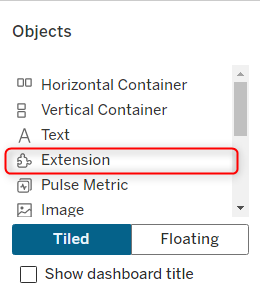
To install an extension, drag and drop the Extension object into your dashboard.
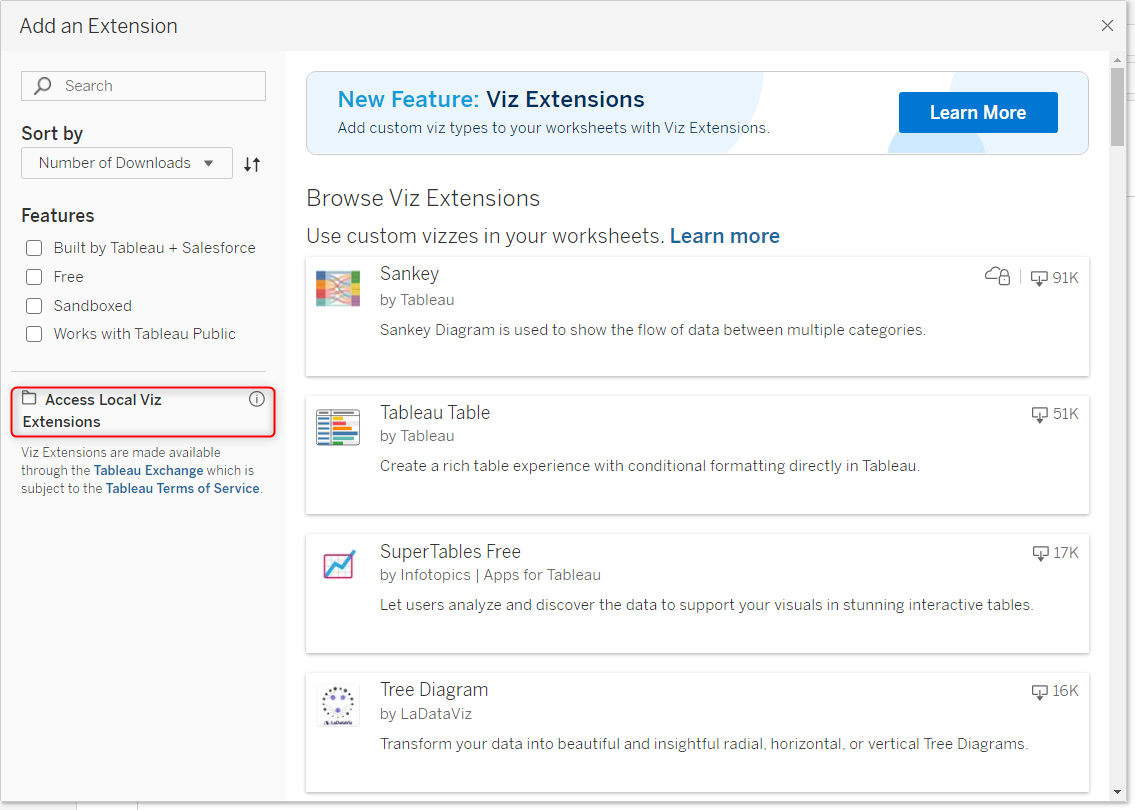
Select "Access Local Extensions" and choose the extension file previously downloaded (.trex).
The extension will appear in your dashboard, displaying a window with a list of sheets or parameters to select from.
Interactivity
Five icons are rendered at the top right of each extension:

(from right to left)
- Arrow icon: Hides the icons and displays a discrete menu icon:

- Window icon: Opens the window for sheet or parameter selection.
- Reload icon: Reloads the extension.
- Settings icon: Opens the settings window for customizing the extension.
- Filter icon: Opens the filter configuration window, allowing you to create filters on other sheets in the dashboard when you click within the extension.
Once the extension is configured, the icons become grey to be less intrusive.
Interactions:
- Hover over elements to display simple tooltips.
- Select data in the source sheet to filter the extension's data.
- In the Sankey, click a node to highlight it. Double-click a node to filter the data by that node. See the sankey documentation for more details.
- In the Tree, double-click a node to expand or collapse it. Single-click highlights the path from the root to the selected node. See the Tree documentation for more details.
- In the Sunburst, double-click a node to filter by that segment. Double-click the center to move up one level. Single-click highlights the path and shows its value in the center. See the Sunburst documentation for more details.
- In the Radar, click a dimension to highlight it. See the Radar documentation for more details.
Example
Sheet version
Add a sheet with the data you want to visualize to the dashboard. Drag and drop the Extension object into your dashboard. Select "Access Local Extensions" and choose the extension file (.trex). The extension will appear in your dashboard, displaying a window with a list of sheets. select the sheet previously added to the dashboard.
Parameter version
Add one or several sheets with the data you want to visualize to the dashboard. Create a parameter starting with "ext_viz_extension type_sheetname" with the list of sheet names. Here, we are using the Radar extension so the parameter must contain "ext_viz_radar_sheetname" Drag and drop the Extension object into your dashboard. Select "Access Local Extensions" and choose the extension file (.trex). The extension will appear in your dashboard, displaying a window with a list of parameters. Select the parameter previously created.